Canvas and elements
The canvas is where a Page, Component, or Mockup becomes a visual hierarchy. The canvas and the Elements panel are two views of the same stored nodes: changing an element in either place changes the same project content and, for exporting files, the same generated structure.
The hierarchy behind the canvas
A visual Component or Page normally has this shape:
Component root
└── Screen list
    ├── Screen: wider
    ├── Screen: narrower
    └── shared Body
        └── ordered element hierarchy
The screens in one Screen List share a Body and element tree. A screen stores responsive dimensions and style overrides; it is not a separate copy of the design. Mockups are different: they do not have a Screen List or runtime preview, so their elements sit directly below the root.
The order and nesting visible in Elements affect the generated JSX. A parent owns ordered children, and moving a node can change layout, reading order, component composition, and logic scope.
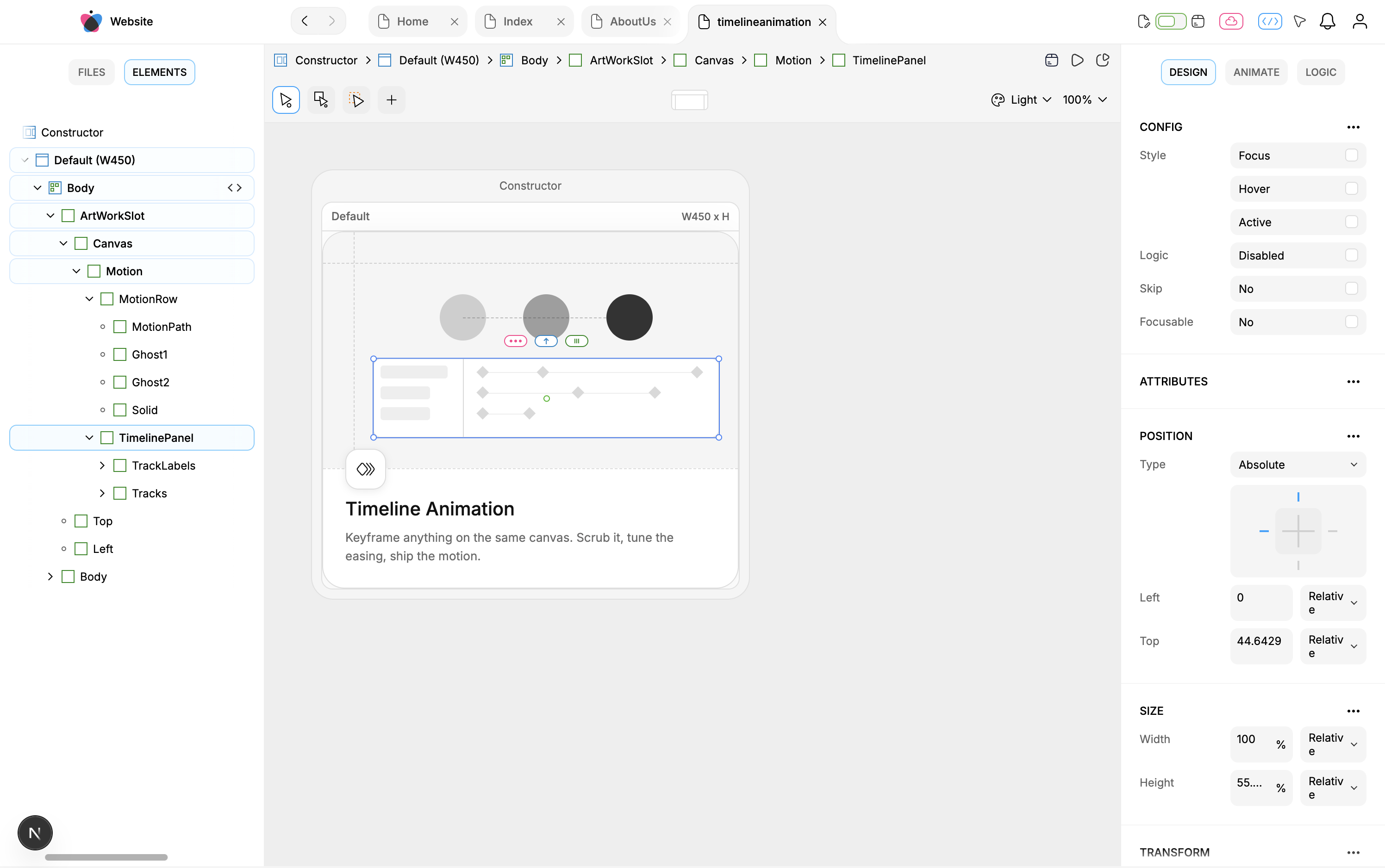
The Website-project pilot shows the same selected TimelinePanel element in the Elements hierarchy, center canvas, and Design inspector.
What you can place
Misaki Studio's current visual hierarchy supports these main kinds of content:
Kind: Element · Use it for: A general container or layout region.
Kind: Text and String · Use it for: Styled text and independently bindable text runs.
Kind: Link · Use it for: A real exported link that crawlers and assistive tools can follow.
Kind: Input · Use it for: User-editable form input behavior.
Kind: Image · Use it for: An instance of a design-system image token.
Kind: SVG and Path · Use it for: Vector containers and editable vector geometry.
Kind: IFrame · Use it for: Embedded external content.
Kind: Mesh Gradient and Shader · Use it for: Generated visual effects with specialized controls.
Kind: Component · Use it for: An instance of another visual or Code Component.
Kind: Document · Use it for: An instance of a rich Document inside a visual hierarchy.
Kind: Connection · Use it for: A connection to another screen with parameter or overlay values.
Kind: Children slot · Use it for: A location where a Component caller supplies React content.
The canvas Draw menu directly creates Element, Image, Text, Svg, Path, Circle, and Square. Circle and Square are convenient path presets. Other supported nodes are added from selection-sensitive menus or specialized workflows.
Not every node accepts every child. For example, a Path belongs inside an SVG, while a Component instance exposes only the child slots declared by its source Component. Misaki Studio validates those parent/child rules when a node is created or moved.
Select and navigate
Use the ordinary Pointer to select and manipulate authored nodes. The canvas selection and Elements selection stay connected, so the hierarchy is often the clearest route when nodes overlap or a parent is difficult to click.
The Design toolbar can also expose:
Interactive pointer for exercising authored behavior instead of selecting through it;
Snap pointer for choosing explicit snap targets;
Path edit/pen for editing the selected Path's geometry;
Fullscreen and Zoom controls;
current Component Variant and project Theme selectors.
Selection, zoom, the active tool, open panels, and canvas position are editor-session state. They are not exported component data.
Build and organize a hierarchy
Open a Page, Component, or Mockup and switch the left sidebar to Elements.
Select the Body or intended parent.
Add the smallest suitable node type.
Give important elements meaningful names before the hierarchy grows.
Nest and reorder elements to match the intended semantic and visual structure.
Select a node and use Design for layout, size, typography, color, effects, and other supported properties.
Preview the result when the file has a runtime preview.
Names do not have to be globally unique, so an element ID is the safer automation target. Good names still matter: they make the Elements panel, MCP tree output, diagnostics, and generated identifiers easier to understand.
Design layers on an element
An element's final style can combine several scopes:
the base style;
a Component variant or exact variant combination;
a responsive screen override;
hover, focus, or active interaction styling;
an advanced per-node style variant;
an ancestor interaction or variant context.
Change only the scope you intend. Editing the base style when you meant to edit a narrow screen changes every screen that inherits that base. Read Variants and responsive design before building multiple style layers.
Lock, hide, and responsive removal are different
Lock is an editor convenience that prevents ordinary canvas hit-targeting. It does not remove the node from preview or export.
Hide hides the node on the editor canvas. It is not a runtime visibility rule and the node can still appear in preview and export.
A screen-specific skip removes the node from that responsive screen and produces responsive output that hides it at that container size.
Logic conditions decide whether a node renders at runtime.
Use the mechanism that matches the outcome. Canvas organization controls should not be used as substitutes for responsive or runtime behavior.
Ask an agent to build a small hierarchy
Coverage: UI + MCP for stored hierarchy and styles; Partial MCP for visible canvas navigation.
Select the Website project and inspect
<component reference>. Read its current file tree first. Inside the shared Body, add an Element namedCardcontaining a Text element namedTitle. Set the title toExample title, apply only base layout and text styles, then read the tree and styles back and show a preview screenshot. Do not delete, replace, or move any existing node.
An agent can use get-file-tree, add-tree, set-element-name, set-text, get-style, update-style, and get-preview-screenshot. It should preserve returned node IDs and use them for later operations. Panel selection, zoom, and the visible canvas selection do not need to mirror the agent's stored change.
For an existing target, copy Path → Copy For MCP from its element context menu. Read Target files, folders, and elements before reusing a reference after a move or replacement.
Verify a canvas change
Read the element tree again and confirm the parent, order, type, and name.
Inspect the base style and every responsive or variant scope that was intentionally changed.
Preview at relevant widths and exercise any interactive state.
Inspect generated output when semantic structure or a Component contract changed.
Confirm one Undo reverses one intended content action.
Undo and side effects
Adding, moving, renaming, styling, or deleting nodes changes persisted Component-file content and should participate in that file's undo history. A drag should commit once at pointer release rather than create an undo entry for every movement.
Selection, hover, open panels, active tools, zoom, and scroll are view state. Deleting a whole project file is a separate File Explorer action and is not recovered by the selected Component's content Undo.
Limits and recovery
Mockups support visual hierarchy work but do not have responsive screens, runtime preview, or React export.
Invalid parent/child moves are rejected or skipped instead of silently producing an impossible hierarchy.
Hiding or locking a node in the editor does not prove it is absent at runtime.
A node ID becomes stale when the node is deleted or replaced; read the tree again after structural changes.
Canvas appearance alone does not verify logic, API data, storage, responsive embedding, or consuming-app dependencies.