Project interface
The Project interface keeps navigation around the outside and puts the selected file's editor in the center. Its five regions remain recognizable while their content changes for Pages, Components, tables, scripts, design-system files, documents, settings, and other file kinds.
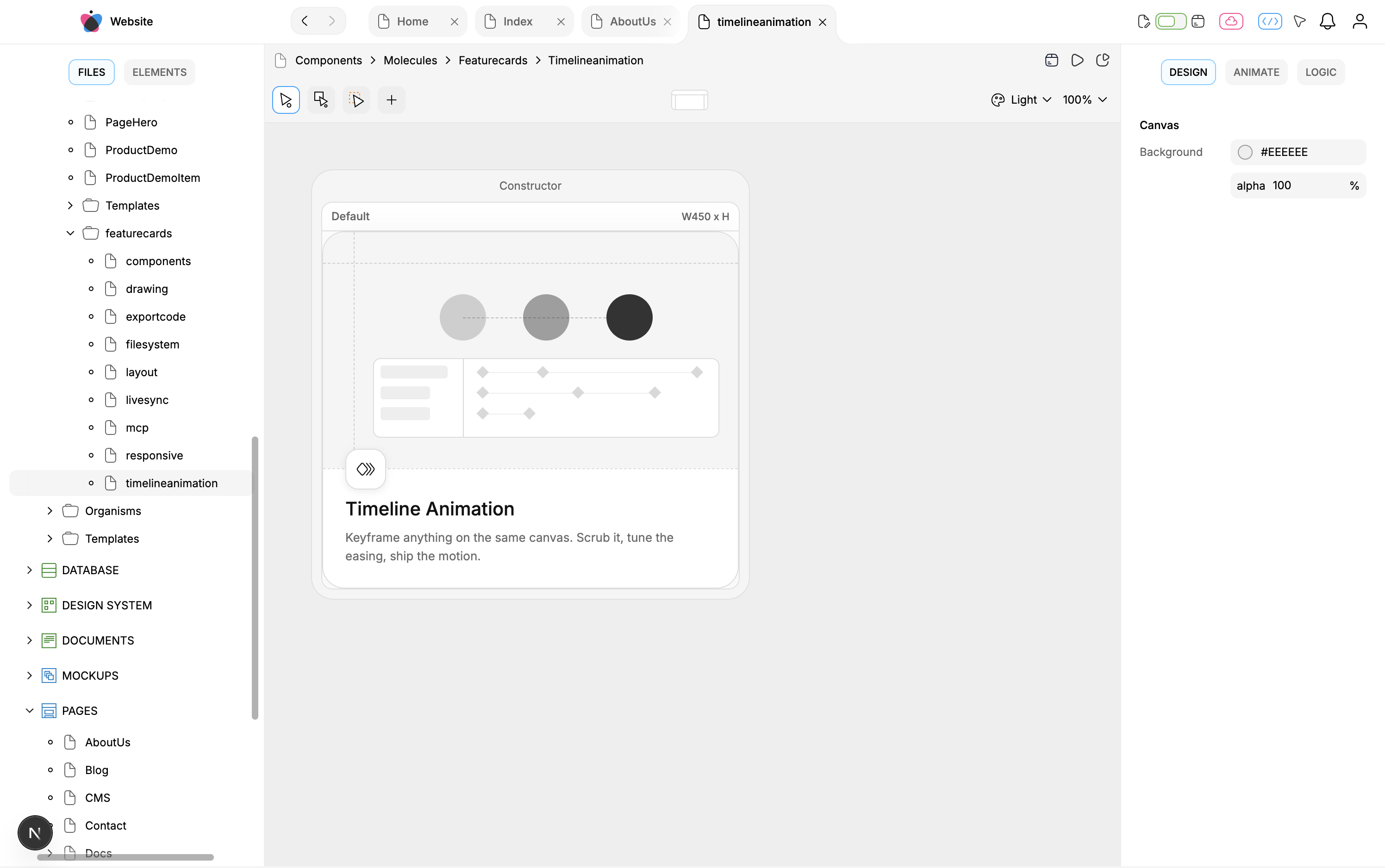
The Website project with a Component selected: top bar, Files panel, Component workspace, Design inspector, and the timeline region below.
Interface map
Region: Top bar · Stable responsibility: Project identity, file navigation, open tabs, project commands, notifications, account entry. · What changes with the selected file?: Selected tab, available project actions, Editor or Library context.
Region: Left sidebar · Stable responsibility: Project files or visual element hierarchy. · What changes with the selected file?: Elements is available only for supported visual files.
Region: Center workspace · Stable responsibility: The selected file's primary renderer and tools. · What changes with the selected file?: Canvas, code editor, table, rich document, token editor, settings form, or no specialized renderer.
Region: Right inspector · Stable responsibility: Context-sensitive configuration. · What changes with the selected file?: Design/Animate/Logic, Code, Props, Column/Record/View, or hidden.
Region: Bottom timeline · Stable responsibility: Component animation layers and time controls. · What changes with the selected file?: Appears for supported visual Component work and hides in fullscreen.
Top bar: project and navigation
The left project control identifies the current project and can return to Dashboard or Home. Previous and Next move through selected-file history in the active Editor or Library view; they do not undo content.
Open files appear as tabs. Tabs can be selected, closed, reordered, or managed through actions such as Close Other and Close to the Right. Closing a tab does not delete its file. Editor and Library keep separate tab stacks and navigation histories.
Project controls on the right include:
switching between Editor and Library;
synchronization, push, and template settings;
code preview, local/Git export, npm export, and publishing;
automation and notifications;
an account menu whose Settings action is currently unfinished.
Export, push, sync, and publish can affect project or external state. They are not ordinary file-content edits and must be reviewed through their own workflows.
Left sidebar: Files and Elements
Files is the project hierarchy. Its actions depend on the selected path and file kind. Double-click a file to open it in the Editor; Library browsing uses its own selection behavior.
Elements is the hierarchy inside the selected Page, visual Component, or Mockup. Selecting an Element synchronizes the tree, canvas, and applicable inspector. Visibility, lock, logic status, reordering, reparenting, duplication, and deletion controls depend on node type and context.
Code Components and Home do not show an Elements hierarchy. An MCP agent can target the underlying file and nodes without reproducing your visible folder expansion or Elements scroll position.
Center workspace: selected-file content
The center is not always a canvas.
Selected file: Page, visual Component, Mockup · Main workspace: Visual Component editor.
Selected file: Code Component · Main workspace: Logic and Code surfaces without a visual hierarchy.
Selected file: Database or Content · Main workspace: Model/Data/Actions/Views-oriented table editor.
Selected file: Script · Main workspace: Logic declarations and authored Code.
Selected file: Document · Main workspace: Rich-text editor.
Selected file: Document Page · Main workspace: Document tree and page/SEO controls.
Selected file: API or Storage · Main workspace: Schema and request/state configuration.
Selected file: Design-system or media file · Main workspace: Token, asset, media, theme, or Props workspace.
Selected file: Export or Environment settings · Main workspace: Specialized settings editor.
Selected file: Libraries or unmatched General file · Main workspace: No ordinary selected-file renderer may be present.
Open renderers can remain mounted while inactive so switching tabs preserves useful file-specific UI state.
Right inspector: selection-sensitive controls
For a visual file:
Design shows canvas or selected-element controls.
Animate shows timeline configuration for the current selection.
Logic shows file data structures and selected-element behavior.
The exact Design sections are composed from the node type. An Element can expose layout and fills; Text adds typography; a Path adds path controls; an Input or Link exposes its own configuration. Controls that do not apply are omitted.
Other files reuse the region differently. Design-system files use Props; tables use Column, Record, or View according to the current table tab; Scripts and Code Components use Logic and Code. Some files have no right inspector.
Bottom timeline: animation editing
For supported visual files, the timeline organizes layers, segments, keyframes, audio, configuration, and playback. Selecting Animate keeps the canvas visible while the inspector and timeline expose time-based configuration.
Opening or resizing the timeline is UI state. Adding a keyframe, segment, or audio lane changes Component content.
Resizing and fullscreen
The left, right, and bottom regions can be resized. Left and right sizes are stored as user preferences, and double-clicking a resizer restores its default. Fullscreen hides the surrounding sidebars, inspectors, resizers, and timeline to give the selected file more room.
These layout controls have no production MCP equivalent because they change the human editor session rather than project content.
Content state versus interface state
Example: Select a tab, expand a folder, change zoom · State kind: Interface/navigation · Shared/undo implication: Not a project-content change.
Example: Resize a panel · State kind: User preference · Shared/undo implication: Stored for the user, not in the selected file.
Example: Add an Element or edit a style · State kind: File content · Shared/undo implication: Persists and should create an appropriate file undo step.
Example: Create, move, or delete a file · State kind: Project file system · Shared/undo implication: Separate from selected-file content undo.
Example: Export, push, publish, deploy · State kind: Destination/external state · Shared/undo implication: Requires destination-specific recovery.
Keeping these categories separate prevents common mistakes such as using Previous when you meant Undo, or assuming project Undo can roll back a Git push.
Ask an agent to map the visible file
Coverage: Partial MCP.
Select the Website project and resolve the currently discussed Component by path. Read its screens, top-level element tree, properties/states/events, timelines, and diagnostics. Do not edit it. Explain which information corresponds to the Files panel, Elements panel, center canvas, Logic inspector, and bottom timeline.
An agent can inspect the same underlying project content, preview output, and diagnostics. It cannot reliably describe your current tab order, expanded rows, scroll positions, panel widths, or zoom without a dedicated UI-observation route. Use the editor for session layout and MCP for stable project references.
Verify your orientation
Open one visual Component and confirm that you can answer:
Which project and file path are selected?
Is the left panel showing project Files or Component Elements?
Is the center in Design, Logic, Code, or another file-specific mode?
What does the right inspector apply to—the canvas, selected Element, file data, or table selection?
Is the bottom timeline visible, and would your next action change view state or Component content?
If those answers are clear, you can follow later workflow pages without confusing navigation with authored output.