Projects and files
A Misaki Studio project is a structured file tree, not one large canvas. Each file has its own purpose, editor, data model, export behavior, and MCP operations. Learning the tree first makes later design, logic, and export work much easier to predict.
The project is the shared boundary
The visual editor and MCP server operate on the same project content. In the editor, you open files from the Files panel. With MCP, an agent selects a project and addresses files by current path or UUID.
Project selection matters because a path such as components/atoms/Button is meaningful only inside its project. An agent should never infer the target from a similarly named file in another project.
Main file families
Family: Visual application · Typical paths or identity:
pages/,components/,components/code/,mockups/· What it contains: Pages, reusable visual Components, authored Code Components, and non-exporting visual Mockups.Family: Content and data · Typical paths or identity:
documents/, typed Document Pages,cms/,database/· What it contains: Rich documents, documentation/blog trees, static Content tables, database schemas/data/actions, and auth tables.Family: Integration and code · Typical paths or identity:
apis/,storage/,scripts/· What it contains: Request contracts, state/storage loaders, and authored TypeScript functions.Family: Design system and media · Typical paths or identity:
design-system/,images/· What it contains: Colors, spacing, radius, fonts, weights, SVG/images, audio, video, themes, and image collections.Family: Project settings · Typical paths or identity:
settings/export,settings/environment,settings/libraries· What it contains: Export destinations, environment values, and linked project libraries.
Some older CMS file formats can still load but are not the current creation path. A path that does not match a recognized kind resolves as a general file and may have no specialized workspace.
Paths determine file behavior
For most files, the path decides the file kind. For example:
pages/Pricingloads as a Page;components/atoms/Buttonloads as a visual Component;components/code/Chartloads as a Code Component because the more specificcomponents/code/rule wins;database/auth/usersloads as the protected Users table;scripts/formatDateloads as a Script.
Document Pages and current Content tables use stored type metadata instead of path alone.
Because kind follows location, moving a file can change what its stored rows would mean. Misaki Studio refuses an ordinary move or copy when the destination resolves to another kind. Pages, Components, Code Components, and Mockups can use an explicit conversion operation; unrelated formats are not silently converted.
Explore files in the editor
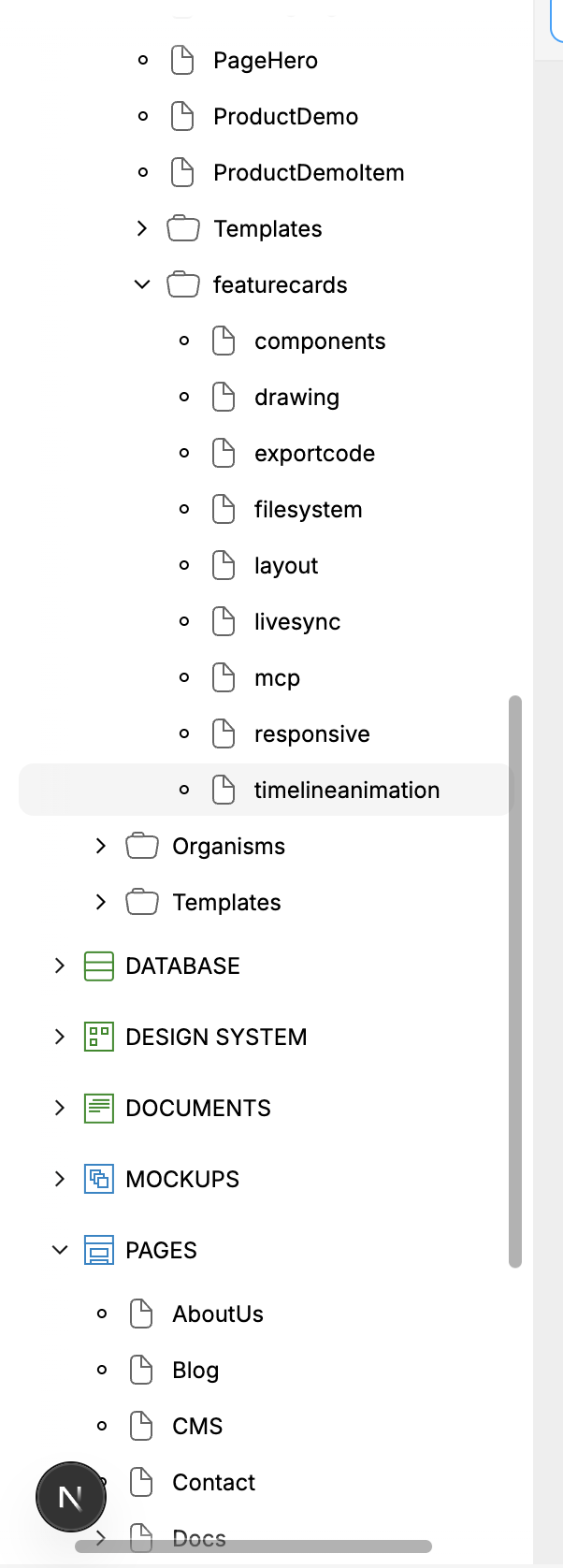
The Files panel shows folders, files, fixed project entries, and the selected Component path.
Use the left sidebar's Files tab to:
expand and collapse folders;
open a file in the current Editor or Library view;
create permitted files or folders;
rename, move, duplicate, copy, paste, convert, or delete where the selected path allows it;
copy a path for a person or an MCP-connected agent;
link or unlink project libraries;
inspect desktop MCP activity associated with a row.
The context menu is capability-sensitive. A missing or disabled action usually means that the selected root, fixed file, file kind, or destination does not permit it.
Important protected locations include the home Page at pages/index, system-owned design-system/settings entries, and constrained first levels such as the Components root. Create ordinary Components in an atomic layer such as components/atoms, components/molecules, components/organisms, or components/templates.
File actions do not all mean the same thing
Duplicate
Duplicate creates another file in the same folder with copied content. It is a project file-system action rather than an edit inside the original file.
Same-project copy and paste
Copy File stores a project reference and can copy the file within the same project. It is not a portable bundle for another project.
External-project copy and paste
Copy File For External Project builds a portable bundle that can include dependent Components, Scripts, design-system values, data files, and referenced assets. Paste File Only deliberately omits those dependencies; the pasted file can therefore show missing Components or fallback token values.
Convert
Conversion is an explicit structural operation between compatible visual file kinds. Use it when the intended destination changes a Page, Component, Code Component, or Mockup into another visual family. Do not substitute a move that would reinterpret stored content.
Delete
Deleting a file or folder changes the project file system and can break references from other files. Confirm the exact path and inspect dependencies first. Whole-file deletion is not recovered by the selected file's content undo stack.
Ask an agent to inspect the project
Coverage: UI + MCP for project content; UI only for visible expansion, tabs, and selection.
List available projects and select the Website project. Run
get-project-detailsand summarize its top-level folders, fixed files, visual files, data/integration files, and settings. Do not open, create, rename, move, convert, duplicate, or delete anything.
list-projects discovers projects, select-project establishes the current MCP project, and get-project-details returns the complete file/folder tree with UUIDs. list-design-files is a narrower list of Pages, Components, and Mockups; it is not a complete project inventory.
For one visual file, get-file-tree returns the element-node hierarchy—not the project File Explorer tree. Use the distinction explicitly in prompts.
Ask an agent to create a file safely
In the selected Website project, inspect
components/atoms. If a visual Component namedBadgedoes not exist, create it there. Report its returned path and UUID, then stop without adding elements or changing any other file.
The agent should use a currently existing parent path and obey the same file-placement permissions as the UI. File names and stored paths are normalized by the project rules, so it must read the returned path rather than inventing one.
Libraries are linked projects
A project can link another project as a Library. Library content appears in a separate project view and is treated as foreign/read-only by the consuming project. You can place instances of compatible Library Components in project-owned visual files, but you edit the source in its owning project.
MCP can list, link, and unlink libraries. Switching your visible Editor/Library view or arranging its tabs remains UI session state.
Undo, persistence, and recovery
Content edits inside an open file—such as changing an element, style, row, or logic structure—use that file's content history when the implementation supports undo/redo. Creating, moving, converting, or deleting a whole file uses project/file-system operations and must be recovered through the applicable project, sync, or backup workflow.
Opening files, selecting tabs, expanding folders, switching panels, and resizing the editor are local navigation preferences rather than shared project content.
Before a structural file operation:
Resolve the current source path and destination.
Check what kind the destination represents.
Inspect references or dependencies.
Perform one bounded operation.
read the project tree again and open the affected file to verify it.