Tour the project interface
The Project UI is the main Misaki Studio editing shell. Its layout stays recognizable while the selected file determines what appears in the workspace and inspector.
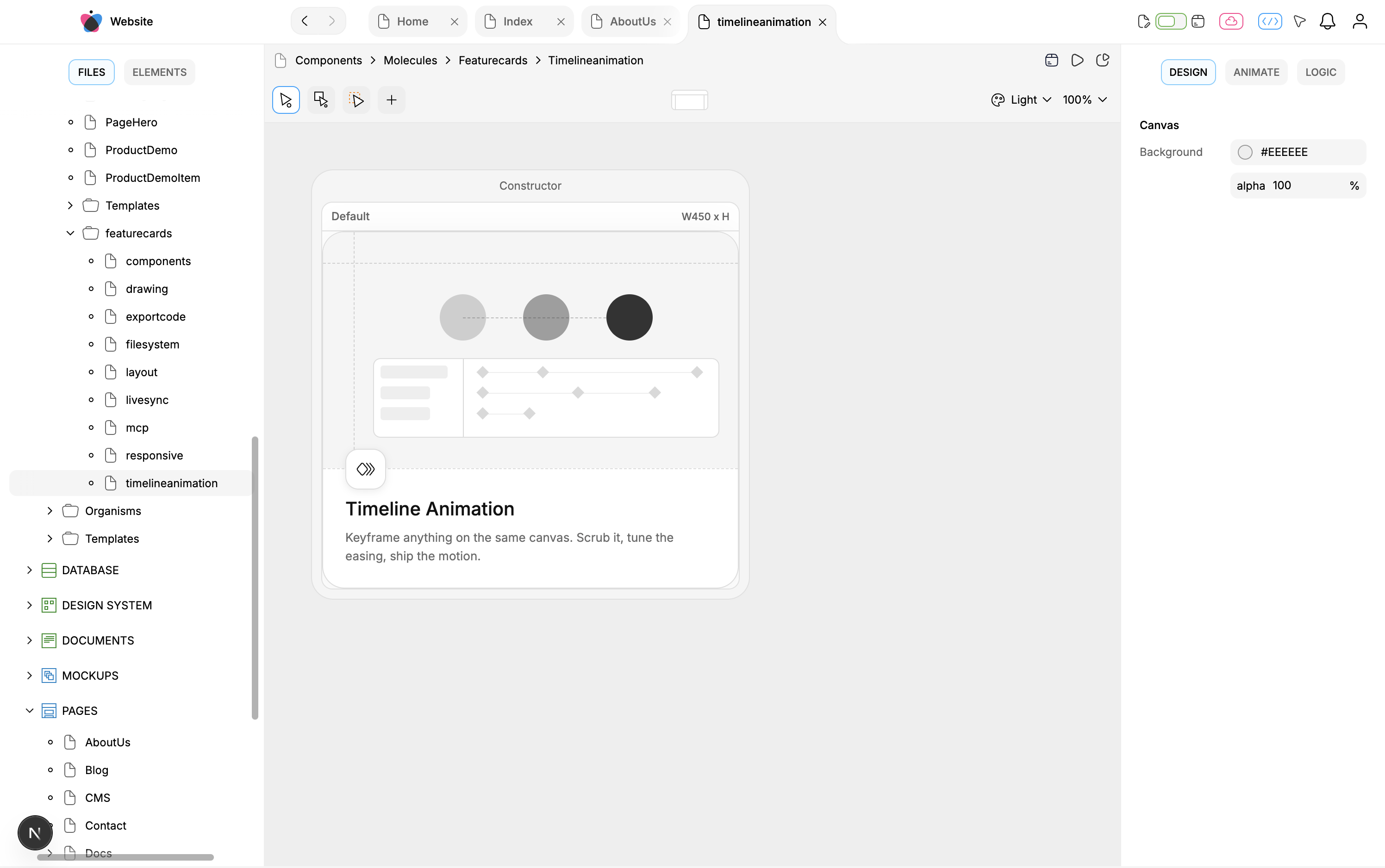
The Website project with its Files panel, a Component canvas, the Design inspector, and several open file tabs.
The five working regions
Region: Top bar · What it is for: Project navigation, file-selection history, open tabs, Editor/Library switching, project operations, notifications, and the account entry.
Region: Left sidebar · What it is for: The project's File Explorer or the selected visual component's Element Explorer.
Region: Center workspace · What it is for: The renderer and editing surface for the selected file.
Region: Right inspector · What it is for: Context-sensitive Design, Animate, Logic, Code, Props, Column, Record, or View controls.
Region: Bottom timeline · What it is for: Timeline layers, segments, keyframes, audio, configuration, and playback for supported Component files.
Top bar
The project name sits at the left. Previous and Next move through the active view's selected-file history; they do not undo or redo content changes. Open files appear as tabs that can be selected, closed, reordered, or managed through their context menu.
Project-level controls on the right switch between Editor and Library, open synchronization or template actions, expose code/export/publishing actions, and show automation or notifications.
The account menu currently exposes Settings, but that action reports Not implemented yet. Treat account settings as unfinished until the product supplies a working settings flow.
Left sidebar
Use Files to browse the project hierarchy. Double-click a file to open it. Available context actions depend on the selected file, folder, root, or linked library; not every row supports creation, movement, conversion, duplication, publication, or deletion.
For a visual Component file, switch to Elements to browse the hierarchy inside the selected screen. Selecting an element connects the tree, canvas, and applicable inspector controls. Expansion and selection are navigation state; operations such as adding, moving, styling, or deleting an element change component content.
Center workspace
The center is file-sensitive rather than being one universal canvas.
Pages, visual Components, and Mockups use the Component editor.
Code components and scripts expose source-oriented workspaces.
Design-system, database/content, image, document, API, storage, environment, and export files use specialized renderers.
Home is a project surface rather than a Component canvas.
Within a visual Component, the active mode determines whether you are designing on the canvas, working with animation, or configuring logic.
Right inspector
For visual components, the inspector has three main modes:
Design shows controls that apply to the current canvas or element selection.
Animate configures the selected element's timeline behavior while the timeline remains available below.
Logic exposes component data structures and element behavior.
Other file types can show Props, Code, Column, Record, or View instead. Some file types do not use a right inspector at all.
Bottom timeline
The timeline appears for supported Component files when its state makes it relevant. It organizes animated layers, segments, keyframes, easing, audio lanes, playback, and configuration. Resizing or opening the timeline is editor state; editing timeline content changes the Component file.
Ask an agent to orient you
Coverage: Partial MCP
An agent can describe project files and inspect the selected Component's structure, but it does not reproduce your visible tab order, panel expansion, or inspector size.
Select the Website project. Read the current file tree, then inspect the
timelineanimationComponent without changing it. Summarize the file path, screens, top-level element hierarchy, data structures, and timelines. Stop after the read.
Use the editor to compare the agent's structured description with the Files and Elements panels. This is a useful first exercise because it teaches the difference between project content and UI navigation without mutating either.
What changes project content?
Selecting a file, switching panels, resizing the layout, changing zoom, and expanding rows are view or session actions. Creating or modifying files, elements, styles, logic, and timelines changes project content and may participate in file persistence, synchronization, and undo.
Fullscreen hides the sidebars, inspectors, resizers, and timeline so the selected file can use more space. It does not remove those project capabilities or delete content.