Share a project
Projects can be shared with other people. As the owner you can invite and remove collaborators; an invited person sees the project under their INVITATIONS tab and can leave it at any time.
There is nothing to accept — an invite grants access straight away, and access is all-or-nothing (there are no per-person roles).
Collaboration is live: two people in the same project see each other's edits as they happen, in the browser and in the desktop app. An edit made while your connection is down is queued and sent in order when it returns.
New here? See Getting started for signing in and creating a project first.
Invite someone
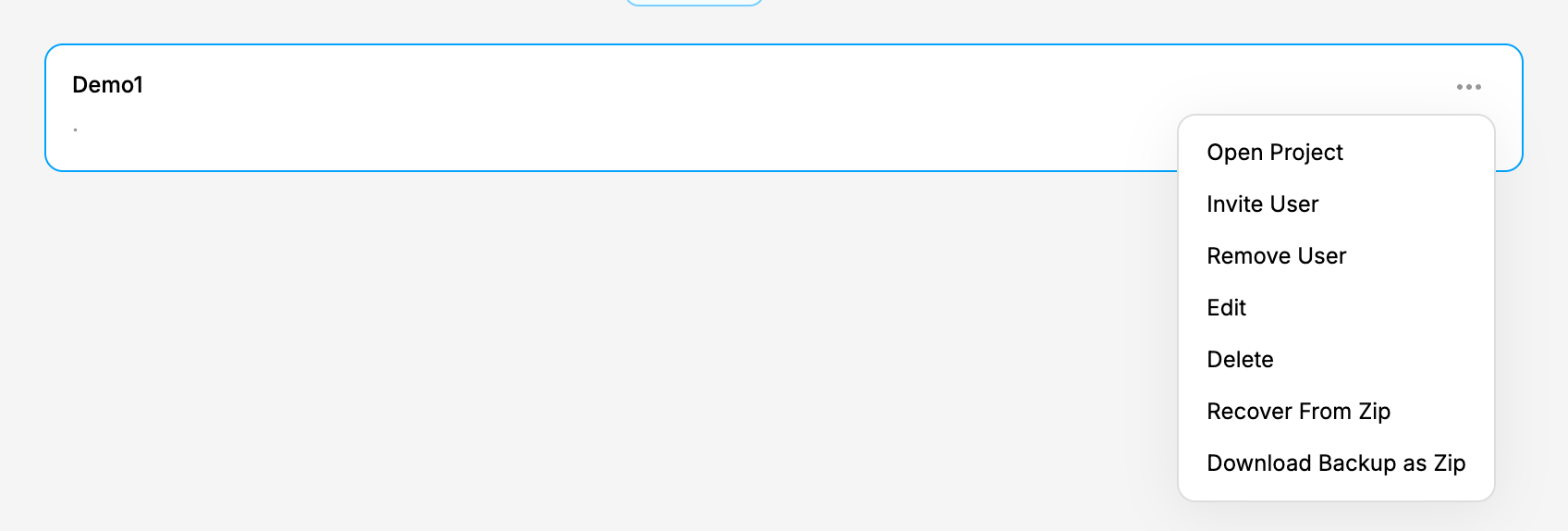
On the dashboard's PROJECTS tab, click the ⋯ menu on a project card and choose Invite User.
Enter the person's account email and click SUBMIT.
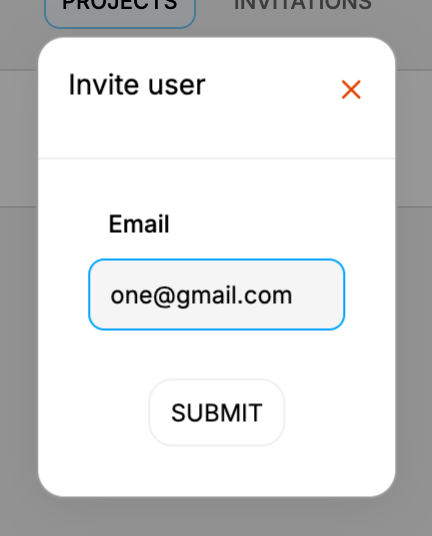
The email must belong to an existing account. Common messages:
Profile not found. — no account uses that email.
Can not invites project your self. — that's your own account; you already own the project.
User all ready invited. — that person is already a collaborator.
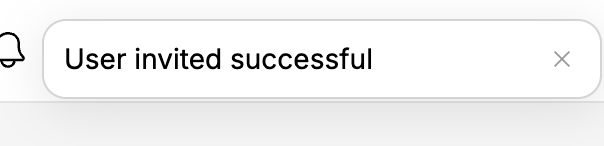
User invited successful — done; they now have access.
What the invited person sees
The invited user opens the INVITATIONS tab on their dashboard and finds the shared project there.

They also get a bell notification naming their email and the project. It is stored, so it is waiting for them even if they were offline when you invited them. You don't get a copy of your own action.
Remove a collaborator
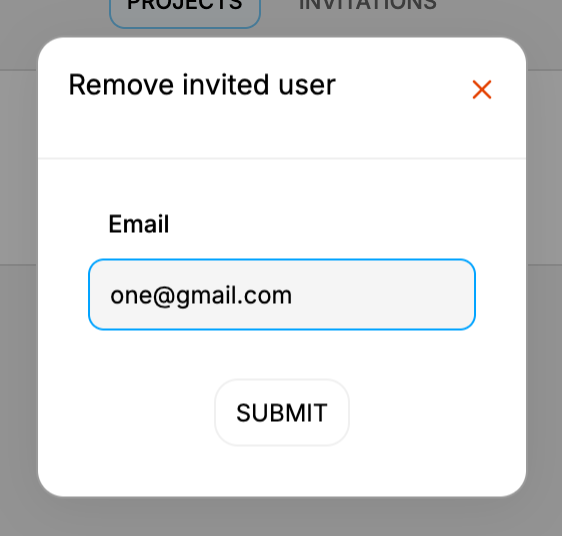
From the project's ⋯ menu choose Remove User, enter their email, and click SUBMIT — "User removed successful" confirms it. They lose access, the project disappears from their INVITATIONS tab, and they get a bell notification saying they were removed from it.
Everyone, in one place
The dashboard's Users panel does the same job across all your projects at once. Click Manage for a grid of people against projects: each cell reads Invited or -, and its ⋯ menu offers Invite User or Remove User for that one pairing.
Leave a shared project
If you were invited to a project (it shows under INVITATIONS), open its ⋯ menu and choose Leave Project.

Confirm by typing leave.
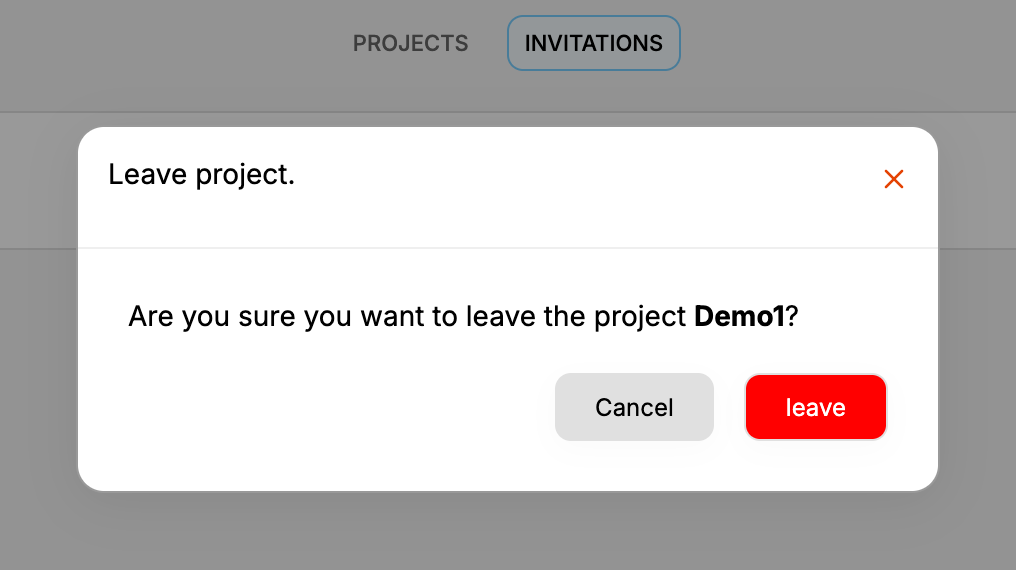
Leaving removes the project from your INVITATIONS tab. The owner still keeps it and can invite you again later.
The project menu
Everything above lives on the ⋯ menu of a project card. The same menu also offers Open Project, Edit (rename or change the description) and Delete. On the web dashboard it additionally offers Download Backup as Zip and Recover From Zip.