Design a Component
Turn one bounded interface idea into a reusable visual Component with a clear hierarchy, intentional layout, responsive-ready styles, a Preview check, and inspected generated output. Add public props, behavior, and animation only after the base structure works.
Coverage: UI + MCP. The UI is the primary direct-manipulation route; MCP can create and inspect the same stored Component result through structured operations.
Before you start
Write a short Component brief:
its single responsibility;
the content it displays;
which parts are fixed and which a parent should control;
the states or variants it eventually needs;
the parent layouts where it must work.
Choose the atomic folder that matches its role: Atom, Molecule, Organism, or Template. These folders organize Components; they do not create different runtime classes. Create ordinary visual Components below one of those folders, not directly in the structural components root.
Build the base structure in the UI
In Files, create the Component in the appropriate Components subfolder and open it.
Switch to Elements and identify the default screen's Body.
Add the smallest semantic hierarchy that represents the brief. Prefer a few intentionally named containers and content nodes over deep anonymous wrappers.
Confirm every child is nested beneath the intended parent in the Element Explorer.
In Design, establish layout first: display mode, direction, size behavior, gap, padding, and alignment.
Add typography, fills, borders, radius, effects, and type-specific values.
Reuse design-system values where they express the intended role.
Preview the base Component before adding responsive screens, variants, logic, or timelines.
The canvas and Element Explorer show the same hierarchy. A visual overlap does not prove correct nesting, and correct nesting does not prove the layout fills or fits its parent as intended.
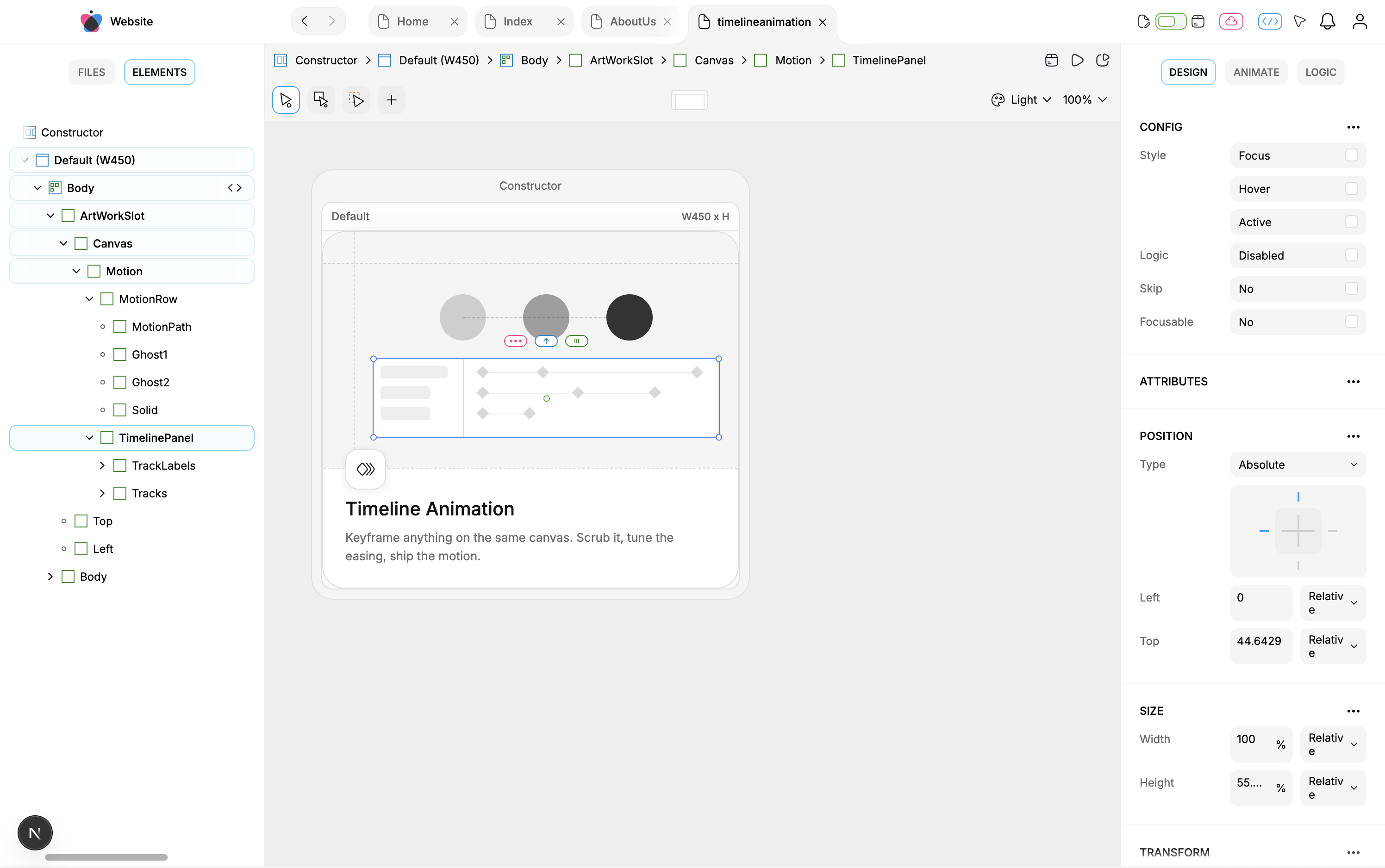
Website-project pilot: the Element Explorer, canvas selection, and Design inspector all target the same stored element.
Make sizing deliberate
Check every important container against its parent:
Use content-sized behavior when the Component should hug its content.
Use fill behavior only on the relevant axis of a flex parent.
Use a relative width when the result should span a percentage of its parent outside that flex case.
Give repeated children equal fill behavior when they should share a row.
Do not mistake a visually wide editor frame for a Component that actually fills its runtime parent.
Default seeded styles can include visual values you did not intend. Inspect the Design properties and generated SCSS for inherited or seeded borders, radius, background, line height, word breaking, and white-space behavior.
Ask an agent
In the
Websiteproject, create a visual Component named<name>under<atomic folder>only if it does not already exist. Callbuild-playbook, inspect the local design-system conventions, and build<bounded structure>as one planned subtree. Use intentional node names and preserve a shallow semantic hierarchy. Establish layout and sizing before decorative styles. Do not add responsive screens, variants, logic, timelines, dependencies, or external output unless this brief explicitly requires them. Read the tree and styles back, show a Preview screenshot, inspect generated TSX/SCSS for unintended default styles, report diagnostics, and stop.
For a planned hierarchy, an agent can use add-tree, then targeted text, style, attribute, or type-specific operations. It should use the current returned IDs rather than inventing them.
Verify the base Component
Check all of these before adding complexity:
the file is in the intended Components folder;
the Element Explorer hierarchy matches the conceptual structure;
each important container uses intentional width and height behavior;
text wraps or stays on one line deliberately;
design-system references resolve in the active theme;
Preview matches the intended base state;
generated JSX nesting and SCSS match the visual model;
diagnostics show no known structural/type issue.
An empty diagnostic result is not a consumer build. Export integration is verified separately.
Undo and recovery
Element and style changes enter the Component's content history. UI undo and MCP undo share that file's stack, so stop other edits before reversing a step and verify the result afterward.
Creating, moving, renaming, converting, or deleting the whole Component is a project file operation. delete-file cannot be recovered through Component content undo.
Continue deliberately
Once the base design passes review:
Create reusable Components to define its contract and use instances;
Make a Component responsive to add screen-specific differences;
Add interactions and logic for behavior;
Animate a Component for time-based changes.